 RSS 2.0
[DynamicsCRM] AddOnWebPage プロジェクトテンプレートを使用してISV拡張ダイアログページを作成する で使用したテンプレートとは別のプラグイン用のプロジェクトテンプレートを使用して簡単なプラグインを作成します。プラグイン開発用のプロジェクトテンプレートは Dynamics CRM SDK 4.0.9 以降に付属しています。
動作確認はWindows 2003 Server Enterprise Edition 上に必要なミドルをすべてインストールした日本語版Dynamics CRM 4.0 (Rollup5) 環境で行っています。
1. プロジェクトテンプレートの登録
Dynamics CRM SDK 4.0.9 を展開したフォルダ sdk\visualstudiotemplates\cs\plugin フォルダ配下のzipファイル mscrm plug-in.zip をVisual Studio を起動する以下のユーザのプロジェクトテンプレートフォルダにコピーします。Visual Studio 2005 の場合は、 Visual Studio 2005 にフォルダのパスを置き換えてください。VBの場合は、VB用のテンプレートをVB用のテンプレートプロジェクトフォルダにコピーします。
C:\Documents and Settings\【ユーザアカウント】\My Documents\Visual Studio 2008\Templates\ProjectTemplates\Visual C#\CRM
2.プラグインの作成
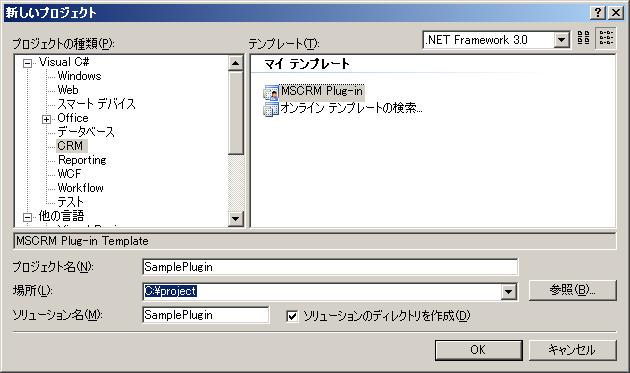
Viaul Studio 2008 を起動し、メニューのファイル→新規作成→プロジェクトをクリックします。プロジェクトテンプレートダイアログから下図のようにプロジェクトの種類にCRMを選択し、テンプレートにMSCRM Plug-in を選択します。プロジェクト名に SamplePlugin を入力してOKボタンをクリックします。
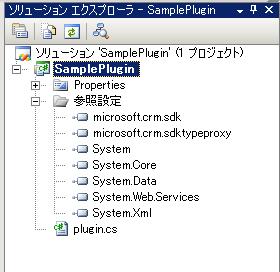
次に、SDKに格納されているアセンブリmicrosoft.crm.sdk.dll, microsoft.crm.sdk.typeproxy.dll への参照を追加します。参照を追加すると下図のように参照設定が設定されます。
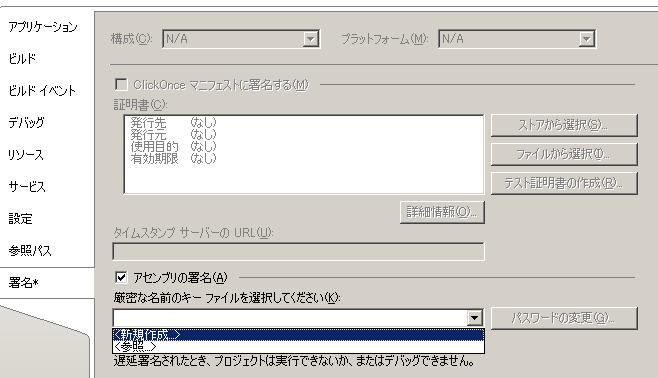
プラグインは署名されている必要があるため、ソリューションエクスプローラのSamplePluginプロジェクト右クリックしコンテキストメニューからプロパティを選択します。プロパティの署名タブを選択し、アセンブリの署名を行います。下図参照。
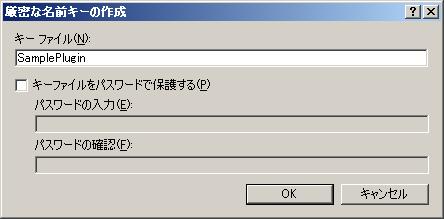
キーファイルを新規作成する場合、キーファイル名を入力して、キーファイルをパスワードで保護するのチェックをクリアしてOKボタンをクリックします。
プラグインを作成します。既定で作成されるplugin.cs を次のように編集します。
今回はcontact エンティティに対するCreate または Update メッセージ中に取引先担当者の名が未指定の場合に"ななしさん" という名前を設定するプラグインを作成しています。
using System;
using System.Collections.Generic;
using Microsoft.Win32;

// Microsoft Dynamics CRM namespaces
using Microsoft.Crm.Sdk;
using Microsoft.Crm.SdkTypeProxy;
using Microsoft.Crm.SdkTypeProxy.Metadata;

namespace Crm.Plugins
{
    public class MyPlugin : IPlugin
    {
        // Configuration information that can be passed to a plug-in at run-time.
        private string _secureInformation;
        private string _unsecureInformation;

        // Note: Due to caching, Microsoft Dynamics CRM does not invoke the plug-in
        // contructor every time the plug-in is executed.

        // Related SDK topic: Writing the Plug-in Constructor
        public MyPlugin(string unsecureInfo, string secureInfo)
        {
            _secureInformation = secureInfo;
            _unsecureInformation = unsecureInfo;
        }

        // Related SDK topic: Writing a Plug-in
        public void Execute(IPluginExecutionContext context)
        {
            DynamicEntity entity = null;

            // Check if the InputParameters property bag contains a target
            // of the current operation and that target is of type DynamicEntity.
            if (context.InputParameters.Properties.Contains(ParameterName.Target) &&
               context.InputParameters.Properties[ParameterName.Target] is DynamicEntity)
            {
                // Obtain the target business entity from the input parmameters.
                entity = (DynamicEntity)context.InputParameters.Properties[ParameterName.Target];

                // TODO Test for an entity type and message supported by your plug-in.
                if (entity.Name != EntityName.contact.ToString())
                {
                    throw new InvalidPluginExecutionException("contactエンティティのみです");
                }
                if (context.MessageName != MessageName.Create.ToString()
                   && context.MessageName != MessageName.Update.ToString())
                {
                    throw new InvalidPluginExecutionException("CreateかUpdateメッセージのみで使用できます:" + context.MessageName);
                }

                if (!entity.Properties.Contains("firstname") || string.IsNullOrEmpty(entity.Properties["firstname"] as string))
                {
                    entity.Properties["firstname"] = "ななしさん";
                }
            }
            else
            {
                return;
            }
        }

        #region Private methods
        /// <summary>
        /// Creates a CrmService proxy for plug-ins that execute in the child pipeline.
        /// </summary>
        /// <param name="context">The execution context that was passed to the plug-ins Execute method.</param>
        /// <param name="flag">Set to True to use impersontation.</param>
        /// <returns>A CrmServce instance.</returns>
        private CrmService CreateCrmService(IPluginExecutionContext context, Boolean flag)
        {
            CrmAuthenticationToken authToken = new CrmAuthenticationToken();
            authToken.AuthenticationType = 0;
            authToken.OrganizationName = context.OrganizationName;

            // Include support for impersonation.
            if (flag)
                authToken.CallerId = context.UserId;
            else
                authToken.CallerId = context.InitiatingUserId;

            CrmService service = new CrmService();
            service.CrmAuthenticationTokenValue = authToken;
            service.UseDefaultCredentials = true;

            // Include support for infinite loop detection.
            CorrelationToken corToken = new CorrelationToken();
            corToken.CorrelationId = context.CorrelationId;
            corToken.CorrelationUpdatedTime = context.CorrelationUpdatedTime;
            corToken.Depth = context.Depth;

            RegistryKey regkey = Registry.LocalMachine.OpenSubKey("SOFTWARE\\Microsoft\\MSCRM");

            service.Url = String.Concat(regkey.GetValue("ServerUrl").ToString(), "/2007/crmservice.asmx");
            service.CorrelationTokenValue = corToken;

            return service;
        }

        /// <summary>
        /// Creates a MetadataService proxy for plug-ins that execute in the child pipeline.
        /// </summary>
        /// <param name="context">The execution context that was passed to the plug-ins Execute method.</param>
        /// <param name="flag">Set to True to use impersontation.</param>
        /// <returns>A MetadataServce instance.</returns>
        private MetadataService CreateMetadataService(IPluginExecutionContext context, Boolean flag)
        {
            CrmAuthenticationToken authToken = new CrmAuthenticationToken();
            authToken.AuthenticationType = 0;
            authToken.OrganizationName = context.OrganizationName;

            // Include support for impersonation.
            if (flag)
                authToken.CallerId = context.UserId;
            else
                authToken.CallerId = context.InitiatingUserId;

            MetadataService service = new MetadataService();
            service.CrmAuthenticationTokenValue = authToken;
            service.UseDefaultCredentials = true;

            RegistryKey regkey = Registry.LocalMachine.OpenSubKey("SOFTWARE\\Microsoft\\MSCRM");

            service.Url = String.Concat(regkey.GetValue("ServerUrl").ToString(), "/2007/metadataservice.asmx");

            return service;
        }
        #endregion Private Methods
    }
}
プラグイン中のCreateCrmService と CreateMetadataService はplugin.cs に既定で定義されているメソッドです。子パイプラインで実行しているプラグインはIPluginContext.CreateService メソッドを呼び出せないので、自力でCrmService や MetadataService のインスタンスを作成する必要があります。プラグインないでは使用していませんが、参考になると思ったのでそのまま掲載しておきます。CRMサーバが同じマシン上からですらIFD接続を行うように構成されている場合はレジストリキーを使用して求めたCRMサーバのURLでうまく接続できない場合もあるので注意してください。ただし、そのような場合でもサーバ名をlocalhostで参照するとうまく接続できます。
3. プラグインの登録
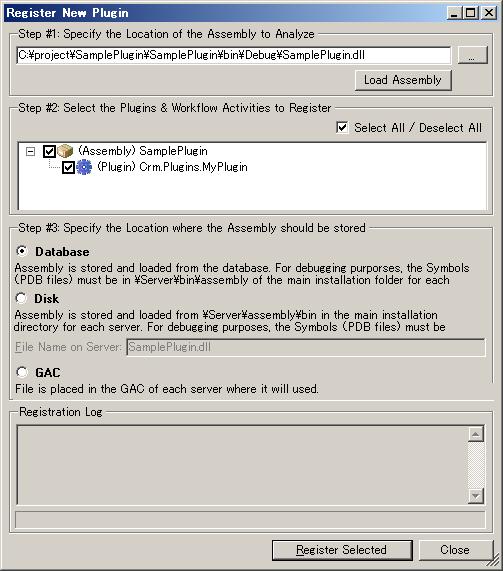
作成したプラグインをビルドして問題がなければdllを登録し、contact エンティティの Create, Update メッセージでプラグインが実行されるようにStepを登録します。Imageは必要ないのでImageの登録は行いません。
Plugin Registration Tool を起動してアセンブリを登録します。Plugin Registration Tool のCrmService への接続やダウンロード先は[DynamicsCRM] Microsoft Dynamics CRM 4.0 Audit Plugin の紹介と使い方を参照してください。
登録先は下図のようにデータベースとします。
デバッグ目的で、登録先をDisk とする場合は、CRMをインストールしたフォルダ\Server\bin\assembly フォルダにdllとpdbファイルを手動で配置します。databaseとdisk の両方にdllが存在する場合は、disk上のdllが優先して参照されるので、一時的にプロセスにアタッチしてリモートデバッグする場合は一々databaseからアセンブリをUnregistする必要はないはずです(IISの再起動は必要だと思います)。
既定ではC:\Program Files\Microsoft Dynamics CRM\Server\bin\assemblyにコピーします。
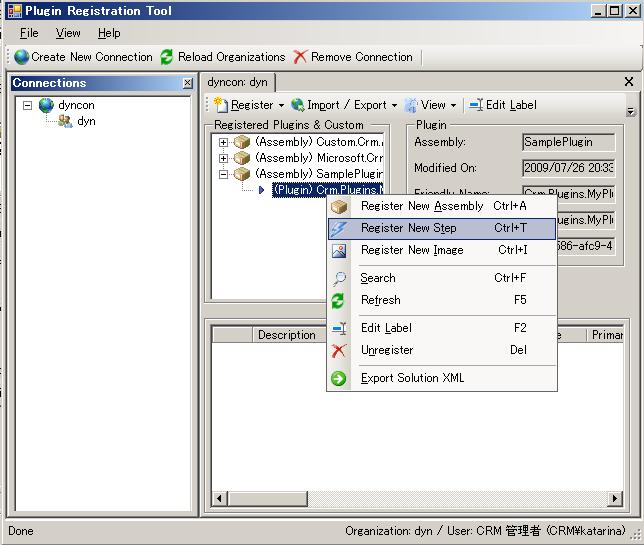
登録後表示される右のタブで、MyPluginを右クリックしてStepを登録します。Register New Step をクリックします。
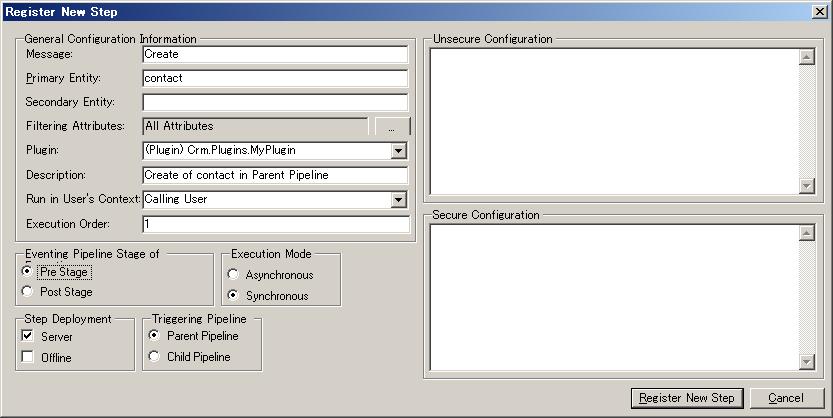
Createメッセージでプラグインが呼び出されるようにMessageをCreate, Primary Entity に contact を指定します。プラグインが呼び出されるステージはコアオペレーション実行前である必要があるため、Event Pipeline Stage of にPre Stage を選択します。それ以外は既定のままでRegister New Step ボタンをクリックします。
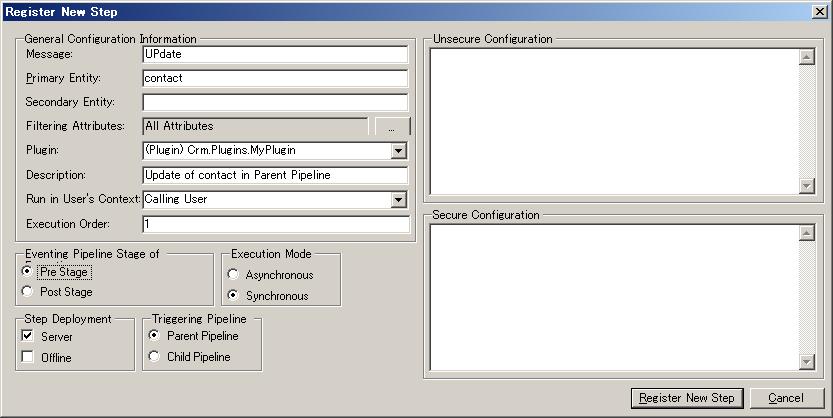
同様にUpdate メッセージ用にStep を登録します。
Updateメッセージでプラグインが呼び出されるようにMessageをUpdate, Primary Entity に contact を指定します。プラグインが呼び出されるステージはコアオペレーション実行前である必要があるため、Event Pipeline Stage of にPre Stage を選択します。それ以外は既定のままでRegister New Step ボタンをクリックします。
以上で登録が完了です。
4.動作確認
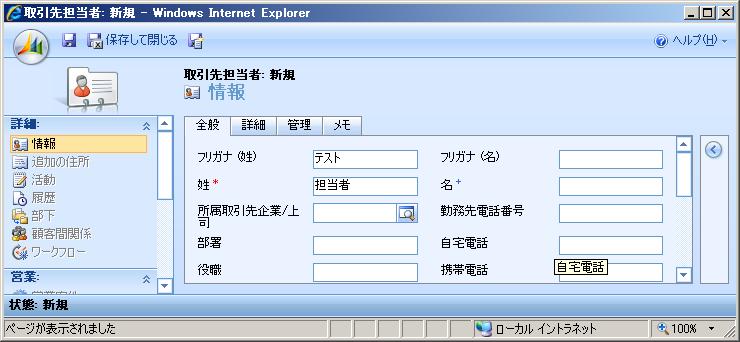
準備が整いました。Dynamics にログインして、ワークプレースの取引先担当者Entityメニューを選択して取引先担当者のリストを表示します。取引先担当者を新規作成用フォームを開きます。新規作成のフォームで名をブランクにしたまま保存ボタンをクリックします。(プラグインが動作していることを確認したいので保存して閉じるボタンをクリックしないで下さい。)
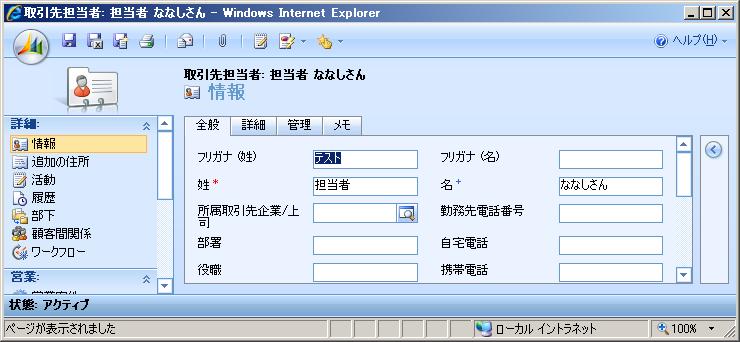
新規作成が成功すると、取引先先担当者の名にななしさん が設定されていることが確認できます。Updateの場合も同じ動きをします。
5. まとめ
今回の説明は以上です。プラグインテンプレートが提供されるようになりましたがプラグインを作り慣れている場合あまり参考にならないかもしれません。作り慣れていない場合は既定で用意されるCreateMetadataServiceなどのヘルパーメソッドの実装やExecuteメソッド内のコメントが有用な情報になると思います。