 RSS 2.0
環境は次のとおり
- OS:Windows XP
- 開発環境:Visual Studio 2005
- 使用アプリ:.NET2.0, Excel 2000
RCW(ランタイム呼び出し可能ラッパーオブジェクト)を使用して、Excelの操作を行います。
1.フォームを作成
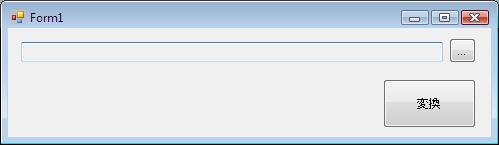
2つのボタンと読み取り専用のテキストフィールドからなるフォーム(下図)を作成します。
2.参照の追加
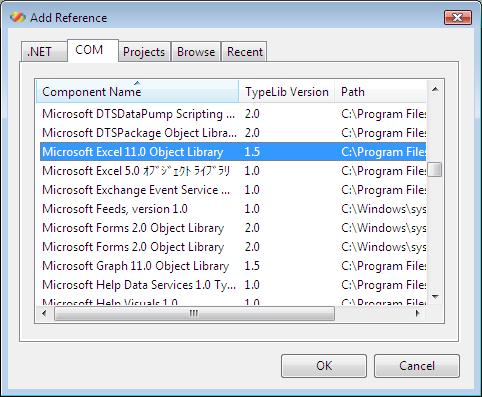
Excelを操作できるように、参照を追加します。下の図ではMicrosoft Excel 11.0 Object Libraryが選択されていますが、Excel2003の場合で、Excel2000の場合はMicrosoft Excel 9.0 Object Libraryを選択してOKボタンをクリックします。
3.ソースプログラムの編集
3.1 ドラッグアンドドロップ処理の記述
ドラッグアンドドロップでフォルダを編集できるように、FormのAllowDropをTrueにします。この設定がないとドラッグアンドドロップができません。
次にドラッグアンドドロップようのイベントと、フォルダ選択ボタンがクリックされたと起用のメソッドを追加します。ドラッグドロップ用にDragEnterとDragDropイベントをサブスクライブして、DragDropEffectsを変更するようにしています。
/// <summary>
/// ...ボタンクリック時の処理、フォルダを選択してテキストボックスに選択
/// されたフォルダのパスをセットします。
/// </summary>
/// <param name="sender"></param>
/// <param name="e"></param>
private void btnSelectFolder_Click(object sender, EventArgs e)
{
    FolderBrowserDialog dlg = new FolderBrowserDialog();
    if (dlg.ShowDialog() == DialogResult.OK)
    {
        txtFolderPath.Text = dlg.SelectedPath;
    }
}

private void SelectPath_DragEnter(object sender, DragEventArgs e)
{
    if (e.Data.GetDataPresent(DataFormats.FileDrop))
    {
        string[] paths = e.Data.GetData(DataFormats.FileDrop) as string[];
        if (paths.Length == 1)
        {
            if (Directory.Exists(paths[0]))
            {
                e.Effect = DragDropEffects.Copy;
                return;
            }
        }
    }
    e.Effect = DragDropEffects.None;
}


private void SelectPath_DragLeave(object sender, EventArgs e)
{
    // Do nothing ..
}

private void SelectPath_DragDrop(object sender, DragEventArgs e)
{
    if (e.Data.GetDataPresent(DataFormats.FileDrop))
    {
        string[] paths = e.Data.GetData(DataFormats.FileDrop) as string[];
        if (paths.Length == 1)
        {
            if (Directory.Exists(paths[0]))
            {
                txtFolderPath.Text = paths[0];
                return;
            }
        }
    }
}
3.2 Excel操作処理の作成
次の内容でExcelオブジェクトを作成し、フッタの右側にCopy right処理を追加する処理を記述します。Copyrightの年だけを変更したい場合に役に立ちます。処理のエントリとして変換ボタンbtnFormat_Clickイベントから処理が開始されます。COMオブジェクトを使う場合は、System.Runtime.InteropServices.Marshal.ReleaseComObject()メソッドで、RCW:ランタイム呼び出し可能ラッパーオブジェクトの参照カウントをデクリメントする処理を追加することを忘れないで下さい。この処理が無いと、アプリケーションが終了するまで、Excelが起動したままになります(タスクマネージャから確認できます)。
/// <summary>
/// 値を設定するEXCELファイルのフォルダのパス
/// </summary>
/// <param name="path"></param>
private void format(string path)
{
    string[] files = Directory.GetFiles(path, "*.xls", SearchOption.TopDirectoryOnly);

    Excel.Application xlApplication = new Excel.Application();
    xlApplication.DisplayAlerts = false;
    xlApplication.Visible = false;

    Excel.Workbooks xlWorkBooks = xlApplication.Workbooks;

    foreach (string xlfile in files)
    {
        Excel.Workbook xlWorkBook = xlWorkBooks.Open(xlfile, Type.Missing, Type.Missing, Type.Missing, Type.Missing,
            Type.Missing, Type.Missing, Type.Missing, Type.Missing, Type.Missing, Type.Missing, Type.Missing, Type.Missing);

        Excel.Sheets xlWorkSheets = xlWorkBook.Worksheets;
        for (int i = 1; i <= xlWorkSheets.Count; ++i)
        {
            Excel.Worksheet xlWorksheet = xlWorkSheets[i] as Excel.Worksheet;
            FormatFile(xlWorksheet);
            Release(xlWorksheet);
        }
        xlWorkBook.Save();
        Release(xlWorkSheets);
        Release(xlWorkBook);
    }

    xlApplication.Quit();
    Release(xlWorkBooks);
    Release(xlApplication);

    MessageBox.Show(this, "処理が完了しました", "正常終了");
}
private void FormatFile(Excel.Worksheet xlWorkSheet)
{
    Excel.PageSetup xlPageSetup = xlWorkSheet.PageSetup;
    xlPageSetup.RightFooter = "&\"Times New Roman,太字\"&10Copyright 2008 by XXXX Corporation. All rights reserved";
    Release(xlPageSetup);
}
protected void Release(object o)
{
    System.Runtime.InteropServices.Marshal.ReleaseComObject(o);
}

/// <summary>
/// 変換ボタンクリック時の処理。フォルダの存在を確かめたあと、変換処理を行います。
/// </summary>
/// <param name="sender"></param>
/// <param name="e"></param>
private void btnFormat_Click(object sender, EventArgs e)
{
    if (!Directory.Exists(txtFolderPath.Text))
    {
        MessageBox.Show(this, "変換するEXCELファイルのあるフォルダのパスを設定して下さい");
        return;
    }
    format(txtFolderPath.Text);
}